
I’ve been using neovim from the last 2 years. But whenever I started learning a new language/framework, I went back to VSCode, since I don’t want the headache of tweaking my neovim config everytime I do something new. And now that I think of it, this is a universal problem with most of the neovim users. So thought that it would be a great idea to share my config, so you don’t have to create yours from scratch.
I’ll be honest, I’ve spent way too many weekends on this. But hear me out - if you’ve ever tried to make Neovim feel like a real IDE for more than one language without everything catching fire, you know the struggle.
Here’s how I got Elixir, Go, C/C++, Python, and JavaScript/TypeScript all playing nicely together inside one NvChad v2.5 config. Every snippet you see below is pulled directly from my actual config.
The Foundation: NvChad v2.5 + Lazy.nvim
Before I get into individual languages, here’s the skeleton that holds everything together. My init.lua bootstraps lazy.nvim and loads NvChad v2.5 as the base:
-- init.lua
vim.g.base46_cache = vim.fn.stdpath "data" .. "/nvchad/base46/"
vim.g.mapleader = " "

-- bootstrap lazy
local lazypath = vim.fn.stdpath "data" .. "/lazy/lazy.nvim"
if not vim.uv.fs_stat(lazypath) then
    local repo = "https://github.com/folke/lazy.nvim.git"
    vim.fn.system { "git", "clone", "--filter=blob:none", repo, "--branch=stable", lazypath }
end
vim.opt.rtp:prepend(lazypath)

require("lazy").setup({
    {

        "NvChad/NvChad",
        lazy = false,
        branch = "v2.5",
        import = "nvchad.plugins",
    },
    { import = "plugins" },
}, require "configs.lazy")
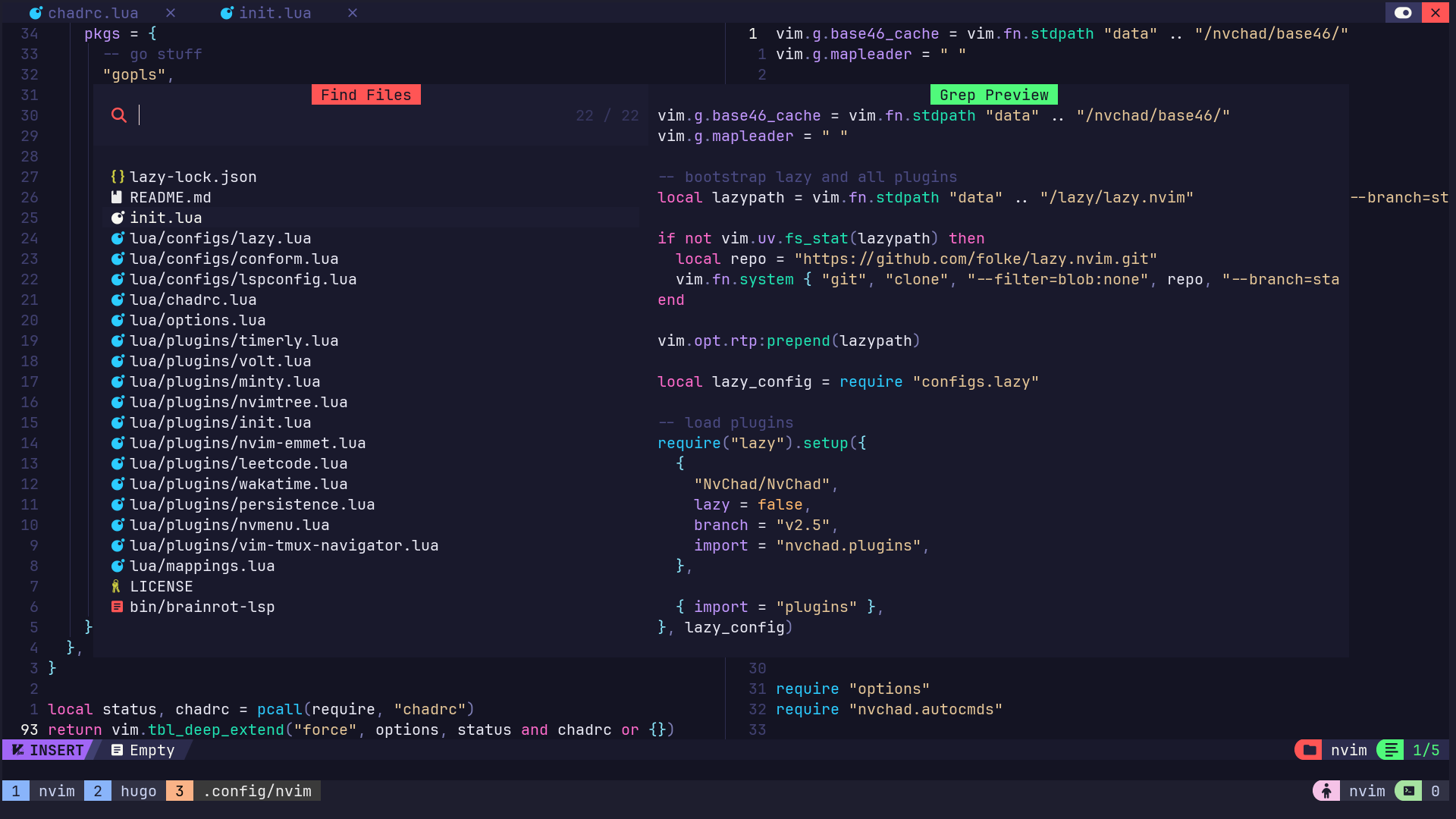
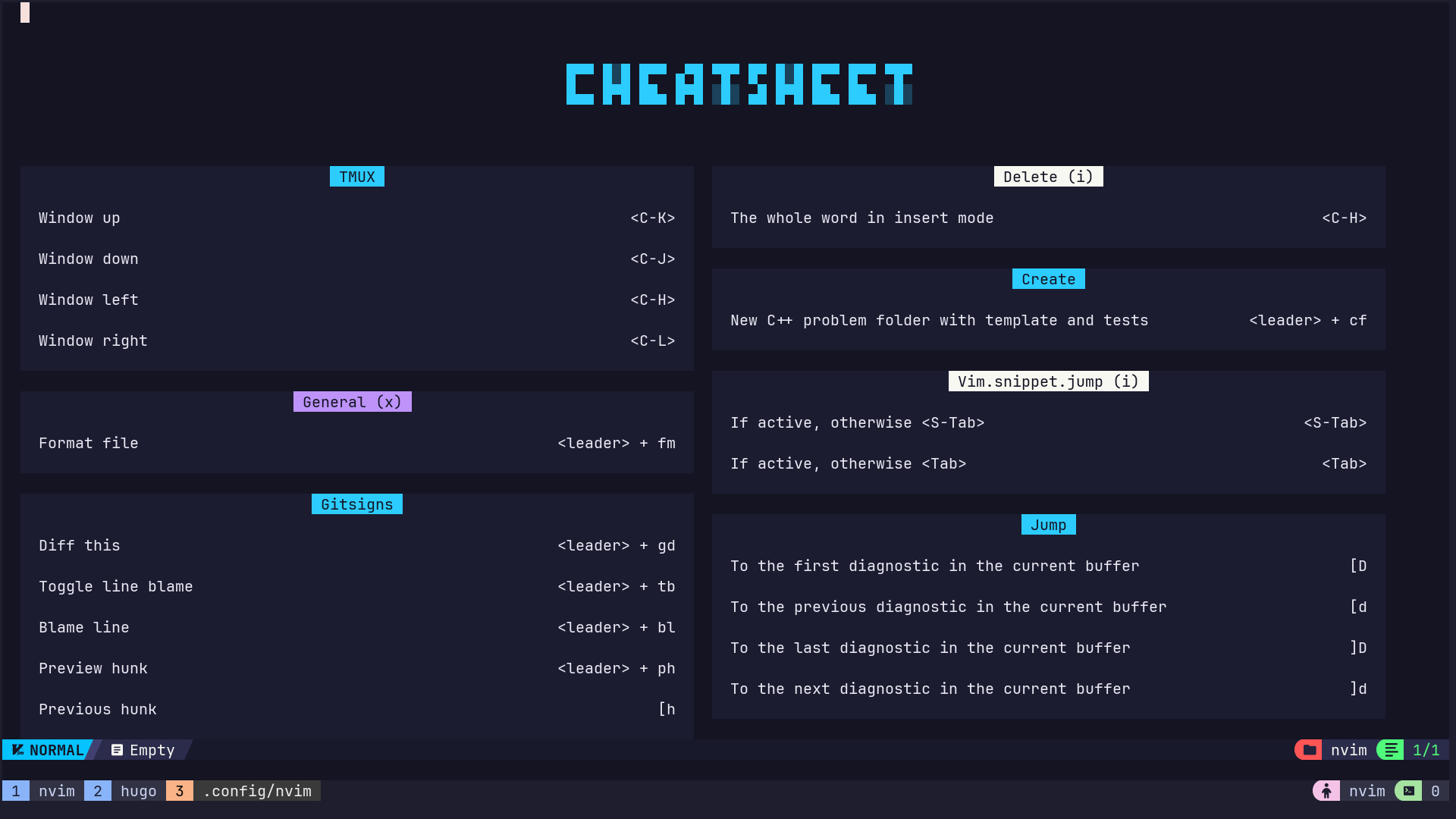
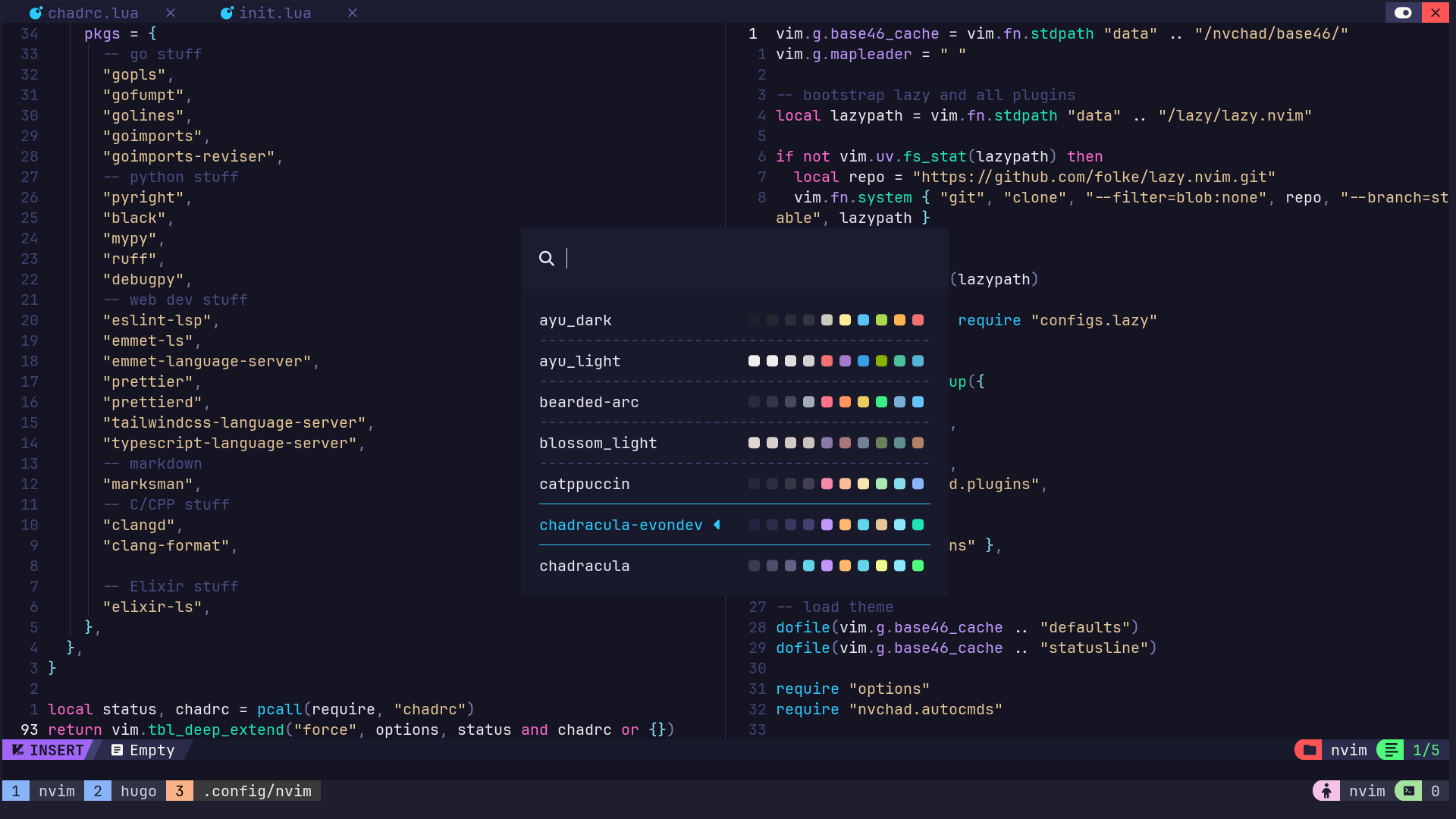
NvChad gives me :
a gorgeous dashboard (with that
VSCODEASCII header I couldn’t resist)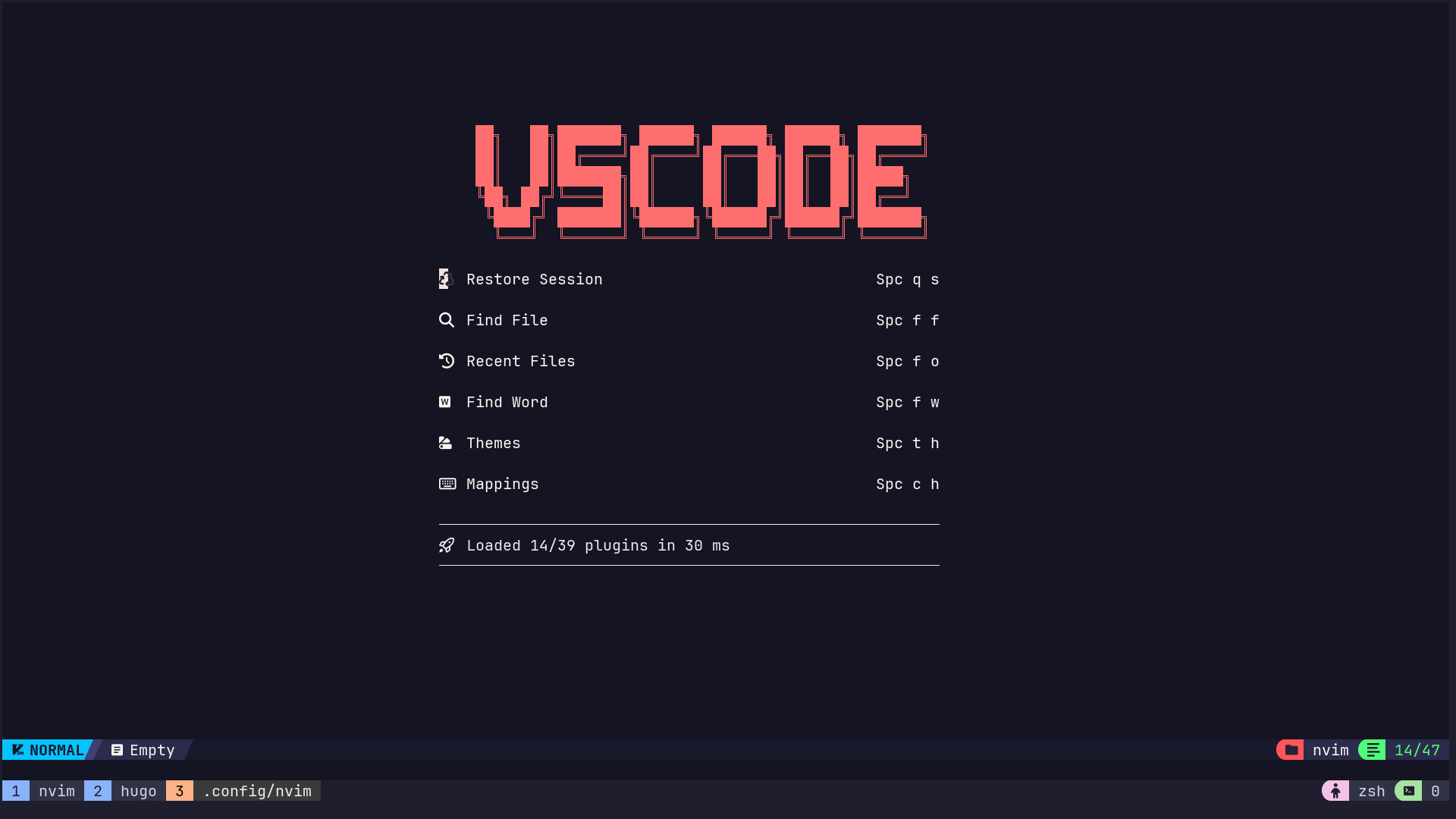
Telescope Integration
a built-in cheatsheet for all your custom keybindings
a theme browser all out of the box.
 The lazy config disables a ton of built-in Vim plugins I never touch - netrw, matchit, tutor, the whole circus - so startup stays snappy.
A few editor-level settings I can’t live without, from options.lua:
local o = vim.opt
o.relativenumber = true
o.tabstop = 4
o.shiftwidth = 4
Relative line numbers for 5j/12k muscle memory. Tabs set to 4 spaces because 2 is too cramped for anything that isn’t HTML. Speaking of which, there’s an autocmd that forces expandtab specifically for Python and HTML files so indentation doesn’t get weird.
I also enable gitsigns inline blame by default here - every line shows who last touched it without me having to do anything:
require("gitsigns").setup {
  current_line_blame = true,
}
Go: The LSP which started my neovim journey
Go was my first LSP setup. And it spoiled me, honestly, because gopls is so good.
lspconfig.gopls.setup {
    on_attach = on_attach,
    capabilities = capabilities,
    cmd = { "gopls" },
    filetypes = { "go", "gomod", "gowork", "gotmpl" },
    settings = {
        gopls = {
            completeUnimported = true,
            usePlaceholders = true,
            analyses = {
                unusedparams = true,
            },
            gofumpt = true,
        },
    },
}
Let me break down why these settings matter:
completeUnimported = true- This is the killer feature. It suggests packages you haven’t even imported yet and then just… adds theimportfor you. You typejson.Marand it autocompletes tojson.Marshaland adds"encoding/json"to your imports. Like magic.usePlaceholders = true- When you accept a completion, it fills in function parameter names as snippet placeholders so you can tab through them. Way better than staring at an empty().analyses.unusedparams = true- Flags unused function parameters. Go already yells at you about unused variables, this extends that to params.gofumpt = true- Usesgofumptinstead of the defaultgofmt. It’s a stricter, opinionated superset. Once you use it you can’t go back.
Notice the filetypes - it covers go, gomod, gowork, and gotmpl. That means your go.mod, workspace files, and Go templates all get LSP intelligence.
Go Tooling: nvim-dap-go + gopher.nvim
On top of the LSP, I load two Go-specific plugins:
nvim-dap-go for debugging:
{
    "leoluz/nvim-dap-go",
    ft = "go",
    dependencies = "mfussenegger/nvim-dap",
    config = function(_, opts)
        require("dap-go").setup(opts)
    end,
},
Now let’s go to the interesting part. The keybindings I set up make it dead simple to debug tests right from the file:
-- Debug a Go test right from the cursor
map("n", "<leader>dgt", function()
    require("dap-go").debug_test()
end, { desc = "DAP Debug go test" })

-- Re-run the last test you debugged
map("n", "<leader>dgl", function()
    require("dap-go").debug_last()
end, { desc = "DAP Debug last go test" })
So you put your cursor on a test function, hit <leader>dgt (that’s Space d g t with my leader), and it fires up Delve, runs just that test, and drops you into the debugger. No terminal switching, no dlv test incantations. If you want to re-run the same test after making changes, <leader>dgl has you covered.
gopher.nvim for struct tags and dependency management:
{
    "olexsmir/gopher.nvim",
    ft = "go",
    config = function(_, opts)
        require("gopher").setup(opts)
    end,
    build = function()
        vim.cmd [[silent! GoInstallDeps]]
    end,
},
The build function auto-installs its Go dependencies (like gomodifytags) when you first set it up. Then the struct tag mappings are chef’s kiss:
map("n", "<leader>gsj", "<cmd> GoTagAdd json <CR>", { desc = "Gopher Add json struct tags" })
map("n", "<leader>gsy", "<cmd> GoTagAdd yaml <CR>", { desc = "Gopher Add yaml struct tags" })
Put your cursor on a Go struct, hit <leader>gsj, and boom - every field gets a json:"field_name" tag. Hit <leader>gsy for YAML tags. Zero typing, zero typos.
Elixir: The Tricky One (But Absolutely Worth It)
I am not going to lie, setting up elixir was the most painful experience for me. Anytime I thought I’m done, I needed something more. ElixirLS can be a bit fussy to set up, but once it clicks? Chef’s kiss.
lspconfig.elixirls.setup {
    on_attach = on_attach,
    on_init = on_init,
    capabilities = capabilities,
    cmd = { "elixir-ls" },
    filetypes = { "elixir", "eelixir", "heex" },
    settings = {
        elixirLS = {
            dialyzerEnabled = true,
            fetchDeps = false,
            enableTestLenses = true,
            suggestSpecs = true,
        },
    },
}
Here’s what each setting does:
dialyzerEnabled = true- Runs Dialyzer analysis in the background. It catches type-related bugs before they happen - things like passing a string where a list is expected. It’s slow on first run because it builds the PLT (Persistent Lookup Table), but after that it’s fast.fetchDeps = false- I don’t want the LSP auto-fetching my deps, thanks. I’llmix deps.getwhen I’m ready.enableTestLenses = true- This puts little “Run Test” / “Run All Tests” code lenses above your test functions. Click one (or trigger it via keybinding) and it runs right there.suggestSpecs = true- ElixirLS will suggest@spectype annotations for your functions. Combined with the codelens keybinding I set up, it’s basically auto-generated docs:
vim.keymap.set("n", "<leader>es", function()
    vim.lsp.codelens.run()
end, { desc = "Elixir insert @spec" })
Hit <leader>es on a function and it inserts a @spec annotation above it. So nice.
I also have an autocmd that auto-refreshes code lenses so they’re always up to date as you type:
vim.api.nvim_create_autocmd({ "BufEnter", "CursorHold", "InsertLeave" }, {
    callback = function()
        vim.lsp.codelens.refresh()
    end,
})
The Part I’m Actually Proud Of: Tailwind Inside HEEx Templates
If you’re doing Phoenix LiveView development, you know that getting Tailwind autocomplete to work inside .heex files is… non-trivial. But I got it working and it’s genuinely nice.
lspconfig.tailwindcss.setup {
    on_attach = on_attach,
    capabilities = capabilities,
    filetypes = {
        "html", "css", "scss",
        "javascript", "javascriptreact",
        "typescript", "typescriptreact",
        "vue", "svelte",
        "heex", "elixir", "eelixir",
    },
    root_dir = function(fname)
        local util = require("lspconfig.util")
        return util.root_pattern(
            "tailwind.config.js",
            "tailwind.config.ts",
            "assets/css/app.css",
            "assets/tailwind.config.js",
            "mix.exs"
        )(fname)
    end,
    init_options = {
        userLanguages = {
            elixir = "html-eex",
            eelixir = "html-eex",
            heex = "html-eex",
        },
    },
    settings = {
        tailwindCSS = {
            includeLanguages = {
                elixir = "html",
                eelixir = "html",
                heex = "html",
            },
            experimental = {
                classRegex = {
                    [[class: "([^"]*)]],
                    [[class: '([^']*)]],
                    '~H""".*class="([^"]*)".*"""',
                    [[class="([^"]*)]],
                },
            },
            validate = true,
        },
    },
}
There’s a lot going on here, so let me walk through the important bits:
root_dir- The custom root pattern is crucial for Phoenix projects. Standard Tailwind setups look fortailwind.config.jsin the project root, but Phoenix puts things inassets/. I addedassets/css/app.css,assets/tailwind.config.js, andmix.exsas root markers so it always picks up the right project.userLanguages- This tells the Tailwind LSP to treat.heex,.elixir, and.eelixirfiles ashtml-eex, which is the language ID it understands for Elixir embedded HTML. Without this, it just ignores those files entirely.includeLanguages- Similar idea but for the CSS validation side. Maps Elixir-related filetypes tohtml.classRegex- This is where the real magic happens. These four regex patterns tell the Tailwind LSP where to look for CSS classes:class: "([^"]*)"- Catches the Elixir atom syntaxclass: "flex items-center"class: '([^']*)'- Same but with single quotes~H""".*class="([^"]*)".*"""- Catches classes inside HEEx sigils (~H""")class="([^"]*)"- Standard HTMLclass=""attributes
Without these, the Tailwind LSP has no idea that
class: "p-4"in a Phoenix component is actually a CSS class reference.
Emmet for HEEx Too
While I was at it, I also set up the Emmet language server to work with HEEx and Elixir files:
lspconfig.emmet_language_server.setup {
    on_attach = on_attach,
    capabilities = capabilities,
    filetypes = {
        "css", "eruby", "html",
        "javascript", "javascriptreact",
        "less", "sass", "scss", "pug",
        "typescript", "typescriptreact",
        "heex", "elixir",
    },
    init_options = {
        showAbbreviationSuggestions = true,
        showExpandedAbbreviation = "always",
    },
}
So div.container>ul>li*3 expands into proper HTML even inside HEEx templates. There’s also nvim-emmet for wrapping selections with Emmet abbreviations - <leader>xe in normal or visual mode wraps whatever you’ve selected.
C/C++: Keep It Simple, Go Fast
Honestly, C++ doesn’t need much ceremony. clangd does the job beautifully:
lspconfig.clangd.setup {
    on_attach = function(client, bufnr)
        client.server_capabilities.documentFormattingProvider = false
        client.server_capabilities.documentRangeFormattingProvider = false
        on_attach(client, bufnr)
    end,
    on_init = on_init,
    capabilities = capabilities,
}
I turned off both documentFormattingProvider and documentRangeFormattingProvider here because clang-format handles formatting separately through conform.nvim. If you leave them on, you get two formatters fighting over your code every time you save. Not fun.
The Competitive Programming Scaffolder
This is a little quality-of-life keybinding that I use whenever I’m solving a puzzle on Codeforces. Hit <leader>cf and it scaffolds a whole competitive programming problem folder:
vim.keymap.set("n", "<leader>cf", function()
    local cwd = vim.fn.getcwd()
    local raw_name = vim.fn.input "Enter the problem name: "
    if raw_name == "" then
        print "No filename entered"
        return
    end

    local safe_name = string.gsub(raw_name, "%s+", "_")
    local folder_path = cwd .. "/" .. safe_name
    local main_file = folder_path .. "/" .. safe_name .. ".cpp"
    local tests_folder = folder_path .. "/tests"
    local input_file = tests_folder .. "/input.txt"
    local output_file = tests_folder .. "/output.txt"

    vim.fn.mkdir(folder_path, "p")
    vim.fn.mkdir(tests_folder, "p")

    if vim.fn.filereadable(main_file) == 0 then
        local template_file = cwd .. "/template.cpp"
        if vim.fn.filereadable(template_file) == 1 then
            local content = vim.fn.readfile(template_file)
            vim.fn.writefile(content, main_file)
        else
            vim.fn.writefile({}, main_file)
        end
    end

    if vim.fn.filereadable(input_file) == 0 then
        vim.fn.writefile({}, input_file)
    end
    if vim.fn.filereadable(output_file) == 0 then
        vim.fn.writefile({}, output_file)
    end

    vim.cmd("edit " .. main_file)
    vim.cmd("vsplit " .. input_file)
    vim.cmd("split " .. output_file)
    vim.cmd "wincmd h"
end, { desc = "Create new C++ problem folder with template and tests" })
Here’s what it does step by step:
- Asks you for a problem name (spaces get replaced with underscores)
- Creates a folder:
problem_name/ - Copies
template.cppfrom your working directory intoproblem_name/problem_name.cpp(if no template exists, creates an empty file) - Creates
tests/input.txtandtests/output.txt - Opens the
.cppfile on the left and the input/output files on the right as a vertical split
So you end up with this layout:
┌─────────────────┬──────────────┐
│                 │  input.txt   │
│  problem.cpp    ├──────────────┤
│                 │  output.txt  │
└─────────────────┴──────────────┘
If you do Codeforces or LeetCode contests, you know how nice that is. No more manually creating files and splitting windows.
Speaking of LeetCode - there’s also leetcode.nvim in there, with C++ auto-injecting #include <bits/stdc++.h> and using namespace std; at the top of every problem:
opts = {
    injector = {
        ["cpp"] = {
            before = { "#include <bits/stdc++.h>", "using namespace std;" },
        },
    },
},
Python: Pyright + Ruff, With Black Formatting
Python gets a dual-LSP setup - pyright for type checking and ruff for linting:
local python_servers = { "pyright", "ruff" }

for _, lsp in ipairs(python_servers) do
    lspconfig[lsp].setup {
        on_attach = on_attach,
        capabilities = capabilities,
        filetypes = { "python" },
        settings = {
            python = {
                analysis = {
                    typeCheckingMode = "basic",
                    autoSearchPaths = true,
                    useLibraryCodeForTypes = true,
                    diagnosticMode = "workspace",
                },
            },
        },
    }
end
typeCheckingMode = "basic"- A good middle ground."off"gives you nothing,"strict"will make you want to throw your laptop."basic"catches real bugs without drowning you.diagnosticMode = "workspace"- Analyzes your entire workspace, not just open files. Catches import issues and cross-file bugs.autoSearchPathsanduseLibraryCodeForTypes- Pyright will follow your import paths and use library stubs for type info. Means you get proper completions for third-party packages.
Formatting is handled by black through conform.nvim - simple, opinionated, no config needed.
JavaScript/TypeScript: Refreshingly Simple
After the Elixir adventure, this one felt like a vacation:
lspconfig.ts_ls.setup {
    on_attach = on_attach,
    capabilities = capabilities,
}
That’s it. That’s the whole setup. ts_ls (the built-in TypeScript language server integration) handles both JS and TS, and it just works.
I also added nvim-ts-autotag for auto-closing and auto-renaming HTML/JSX tags:
{
    "windwp/nvim-ts-autotag",
    ft = {
        "javascript", "javascriptreact",
        "typescript", "typescriptreact",
    },
    config = function()
        require("nvim-ts-autotag").setup()
    end,
},
It’s such a small thing but the moment you use it you can’t go back. Type <div>, it auto-closes with </div>. Rename the opening tag, the closing tag updates. Simple, essential.
The HTML LSP also gets HEEx support so I get completions in heex templates too:
lspconfig.html.setup {
    on_attach = on_attach,
    on_init = on_init,
    capabilities = capabilities,
    filetypes = { "html", "heex" },
}
Treesitter: Syntax Highlighting That Actually Understands Code
  {
    "nvim-treesitter/nvim-treesitter",
    opts = function()
      local opts = require "nvchad.configs.treesitter"
      opts.ensure_installed = {
        "lua",
        "javascript",
        "typescript",
        "tsx",
        "go",
        "python",
        "elixir",
        "c",
        "cpp",
      }
      return opts
    end,
  },
Treesitter gives you syntax highlighting based on an actual parse tree, not just regex patterns. The difference is especially noticeable in TSX files where regular syntax highlighting just… gives up.
Formatting: Because Code Style Debates Are Boring
Everything runs through conform.nvim and formats on save. No arguments, no thinking about it:
local conform = require "conform"
conform.setup {
    formatters_by_ft = {
        -- go stuff
        go = { "gofumpt", "goimports_reviser", "golines" },
        -- python stuff
        python = { "black" },
        -- web dev stuff
        javascript = { "prettierd" },
        javascriptreact = { "prettierd" },
        typescript = { "prettierd" },
        typescriptreact = { "prettierd" },
        css = { "prettierd" },
        html = { "prettierd", "djlint" },
        markdown = { "prettierd" },
        -- C/C++ stuff
        c = { "clang-format" },
        cpp = { "clang-format" },
        -- elixir stuff
        elixir = { "mix" },
        eelixir = { "mix" },
        heex = { "mix" },
    },
    format_on_save = {
        timeout_ms = 5000,
        lsp_fallback = true,
    },
}
A few things worth noting:
- Go gets three formatters stacked:
gofumpt(stricter gofmt),goimports_reviser(organizes imports into sections), andgolines(wraps long lines). They run in order. Yes, I’m extra like that. - Elixir uses
mix formatthroughdirenv- this is a custom formatter definition:
formatters = {
    mix = {
        command = "direnv",
        args = function(_, ctx)
            return {
                "exec", vim.fn.getcwd(),
                "mix", "format",
                "--stdin-filename", ctx.filename,
                "-",
            }
        end,
        stdin = true,
        timeout_ms = 5000,
    },
},
Why direnv? Because Elixir projects often use asdf or mise for version management, and direnv ensures the right Elixir version is used when formatting. The --stdin-filename flag tells mix format which file’s config to use (it respects .formatter.exs), and - tells it to read from stdin. This way it picks up your project’s formatter config automatically.
- HTML gets both
prettierdanddjlint- Prettier for the markup, djlint for template-specific stuff. - The
lsp_fallback = truemeans if no formatter is configured for a filetype, it falls back to whatever the LSP server offers. Safety net.
Installing Everything: One Command
This is the part where NvChad + Mason really shine. Everything you need is defined upfront in chadrc.lua:
mason = {
    pkgs = {
        -- go stuff
        "gopls", "gofumpt", "golines",
        "goimports", "goimports-reviser",
        -- python stuff
        "pyright", "black", "mypy", "ruff", "debugpy",
        -- web dev stuff
        "eslint-lsp", "emmet-ls", "emmet-language-server",
        "prettier", "prettierd",
        "tailwindcss-language-server", "typescript-language-server",
        -- markdown
        "marksman",
        -- C/CPP stuff
        "clangd", "clang-format",
        -- Elixir stuff
        "elixir-ls",
        -- Lua
        "lua_ls",
    },
},
Then just run:
:MasonInstallAll
And it goes and fetches every language server, formatter, linter, and debugger you need. No hunting around, no manual installs, no brew install or cargo install or pip install. That’s 18 packages across 6+ languages, installed in one shot.
The Extra Stuff That Makes It Home
Session Management with persistence.nvim
{
    "folke/persistence.nvim",
    event = "BufReadPre",
    config = function()
        require("persistence").setup {
            dir = vim.fn.expand(vim.fn.stdpath "state" .. "/sessions/"),
            options = { "buffers", "curdir", "tabpages", "winsize" },
        }
    end,
}
It auto-saves your session (open files, window layout, tab pages) and you can restore it with <leader>qs. The dashboard even has a “Restore Session” button so you can pick up right where you left off.
Tmux Integration
-- vim-tmux-navigator (loaded eagerly)
{ "christoomey/vim-tmux-navigator", lazy = false }
With these keybindings:
map("n", "<C-h>", "<cmd> TmuxNavigateLeft<CR>")
map("n", "<C-l>", "<cmd> TmuxNavigateRight<CR>")
map("n", "<C-j>", "<cmd> TmuxNavigateDown<CR>")
map("n", "<C-k>", "<cmd> TmuxNavigateUp<CR>")
Ctrl+h/j/k/l seamlessly jumps between Neovim splits and Tmux panes. Your brain doesn’t have to care whether you’re crossing a Vim split or a Tmux pane boundary. It just works. If you live in Tmux (and you should), this plugin is non-negotiable.
NvimTree With Git Ignored Files
{
    "nvim-tree/nvim-tree.lua",
    opts = {
        filters = {
            git_ignored = false,
        },
    },
}
By default NvimTree hides gitignored files. I turned that off because I often need to peek at build artifacts, .env files, or _build directories (especially in Elixir projects).
WakaTime for Tracking
{ "wakatime/vim-wakatime", lazy = false }
Tracks how much time I actually spend coding vs staring at the screen. It’s humbling, honestly.
Other Goodies
- Minty (
nvzone/minty) - Color picker with:Shadesand:Huefycommands - Timerly (
nvzone/timerly) - A Pomodoro timer right inside Neovim with:TimerlyToggle - Menu (
nvzone/menu) - Context menus, including a right-click menu that even works in NvimTree
The Keybindings I Actually Use Daily
Here’s the full list, pulled straight from mappings.lua:
| Keybinding | What It Does |
|---|---|
<leader>gsj / <leader>gsy | Add JSON or YAML struct tags in Go |
<leader>dgt | Debug a Go test right from the file |
<leader>dgl | Re-run the last Go test debug |
<leader>db | Toggle a DAP breakpoint |
<leader>dus | Open DAP debugging sidebar |
<leader>cf | Scaffold a new C++ problem folder |
<leader>es | Insert Elixir @spec via codelens |
<leader>lf | Open floating diagnostic window |
<leader>tv / <leader>tt | Toggle vertical/horizontal terminal |
<leader>qs / <leader>ql | Restore session / restore last session |
<leader>lr / <leader>ls | LeetCode run / submit |
<leader>ph | Git preview hunk |
<leader>bl | Git blame line |
<leader>tb | Toggle inline git blame |
<leader>gd | Git diff this file |
]h / [h | Jump to next/previous git hunk |
<leader>xe | Emmet wrap with abbreviation |
Ctrl+h/j/k/l | Navigate between Tmux/Neovim panes |
Ctrl+t | Open context menu |
j / k | Move by visual lines (wrapped lines) |
Ctrl+h (insert mode) | Delete whole word |
The j/k remapping to gj/gk is small but matters a lot if you work with wrapped lines (like markdown or long comments). Normal j skips the whole logical line; gj moves by what you see.
Theme: Chadracula-Evondev
The theme is set to chadracula-evondev - a Dracula variant with some tweaks. The dashboard header and buttons have custom highlight overrides for a clean, transparent look:
base46 = {
    theme = "chadracula-evondev",
    hl_override = {
        NvDashAscii = { bg = "NONE", fg = "baby_pink" },
        NvDashButtons = { bg = "NONE", fg = "white" },
    },
},
Plus custom line number colors so they’re visible but not distracting:
vim.cmd [[
  highlight LineNr ctermfg=grey guifg=#aaaaaa
  highlight CursorLineNr ctermfg=white guifg=white gui=bold cterm=bold
]]
Steal The Whole Thing
Look, this config isn’t perfect and I’m always tweaking it. But it handles Go, Elixir, C/C++, Python, JavaScript, and TypeScript without me having to think about tooling anymore - which is kind of the whole point, right? You want the editor to disappear so you can just write code.
You can find the source code of my neovim config in this github repository
git clone https://github.com/jitesh117/nvim ~/.config/nvim && nvim
# then run :MasonInstallAll
Hit me up if something breaks, or if you find something I should add. Happy to nerd out about this stuff endlessly!
